Set it up once
Open the Tuner tab and choose a preset under Instrument Presets. The free presets are Chromatic, Guitar (Standard), Guitar (Drop D), Bass (4-string), Ukulele (Soprano gCEA), Violin and Mandolin (GDAE). Pro adds more than 60 others, from DADGAD and open tunings to extended-range guitars, orchestral strings, brass and woodwind.
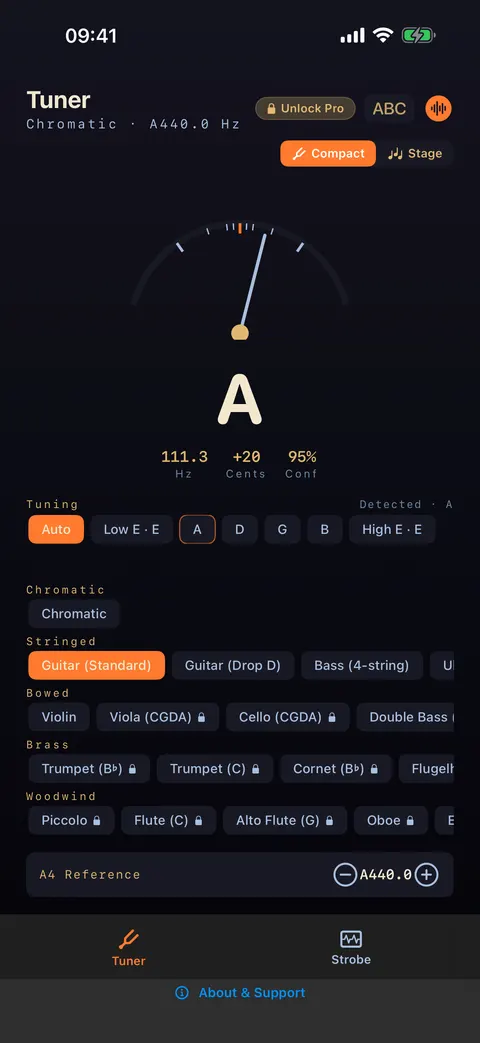
With a preset chosen, the Tuning row shows each string and, on Auto, highlights the one it has detected. That saves you reading note names, which is handy on an unfamiliar instrument.
The header shows your preset and reference together, for example "Guitar (Standard) · A440.0 Hz". Compact view packs everything on one screen. Stage view gives you a larger display for when the phone is further away.
Reading the display
The needle and the cents readout show how far you are from the nearest note. SUS4 Tuner counts you as in tune within ±5 cents. Most people can’t hear a difference smaller than that on a single note, but two instruments 10 cents apart will audibly beat against each other.
Hz shows the actual frequency, and the confidence figure tells you how clearly the app is hearing the note. If confidence is low, play the string a little harder, mute the others and hold the phone closer to the instrument or the amp.
Habits that keep you in tune
- Tune up to the note. If you are sharp, drop below it and come back up. The string then settles against the tension of the machine head instead of slipping flat as you play.
- Tune with the instrument in playing position and at playing temperature. A guitar tuned straight out of a cold car will be out again ten minutes later.
- After a set of new strings, stretch them gently and re-tune two or three times.
- Play the string the way you play in the song. Digging in hard can pull a note sharp, so check it at your normal strength.
Tuning a band to one reference
Standard pitch is A = 440 Hz, and that is the default. If you are playing with a piano or organ that can’t easily be retuned, tune everyone to it instead. Play its A, read the frequency off SUS4 Tuner, then set A4 Reference to match on every other tuner in the room. The A4 Reference row steps in 0.1 Hz from 430 to 450 Hz.
The Strobe tab also has one-tap reference pitches for other conventions: A=415 (Baroque), A=440 (Standard), A=442 (Orchestral) and A=432 (Alt).