What does Play song in mean?
The key you tap under Play song in is the key you want the song to sound in. Capo Calc then lists every capo position up to fret 7 where one of your shapes sounds in that key. Row by row you see Capo then a fret (or No capo), Play then a shape, and on the right sounds then the key you will hear.
If you are moving a song to suit your voice, that is the new key. If the song is already in the key you want, it is the song’s own key. Either way, the question the app answers is: with the capo here, which key can I play in so that it sounds right?
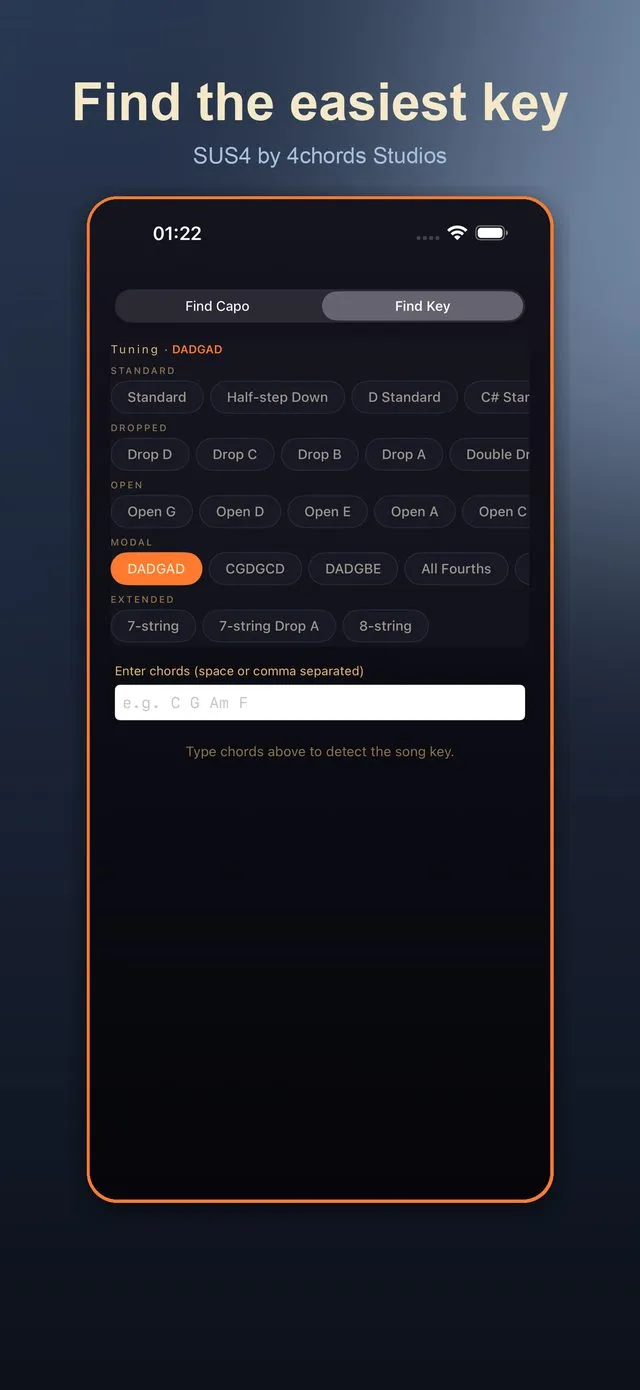
Choose the tuning first
The tuning rows are grouped as Standard, Dropped, Open, Modal and Extended. Standard has Standard, Half-step Down, D Standard, C# Standard and C Standard. Dropped has Drop D, Drop C, Drop B, Drop A and Double Drop D. Open has Open G, Open D, Open E, Open A, Open C and Open D♭. Modal has DADGAD, CGDGCD, DADGBE, All Fourths, New Standard and Nashville. Extended has 7-string, 7-string Drop A and 8-string. Each row scrolls sideways.
A capo raises every string by the same amount, so the key arithmetic is the same in every tuning. What the tuning changes is which shapes the app counts as easy: shapes made from your tuning’s own open strings rank highest, followed by the usual open shapes (C, G, D, A and E).
Reading the suggestions
Prefer open-friendly shapes is on to begin with. Leave it on and you only see shapes that are built from open strings. Switch it off and every one of the twelve shapes is a candidate, which gives more rows, including barre shapes.
Suppose the song is in Bb. In standard tuning the list is Capo 1 with the A shape, Capo 3 with the G shape and Capo 6 with the E shape, in that order, because the lowest fret comes first. Each row has a small fretboard diagram with the capo drawn as a bar across the neck, so you can see where the first fret above the capo falls.
Capo 3 with the G shape is a common choice, and it leaves a comfortable neck position. The best row is the one with the shapes you can play without thinking, not necessarily the lowest fret.
Turn the answer into chords
Capo Calc gives you the capo fret and the shape of the key. The chords of the song are yours to convert, and the rule is simple: the sounding chord minus the capo fret is the shape you play. With the capo on fret 3 and a song that goes Bb, Eb, F, Gm, you play G, C, D and Em.
Check one chord by ear before you play it through. Capo on, play the first shape, and compare it with the record or the original. If the first chord is right, the rest will be too. For a minor chord, keep the minor: Gm becomes Em, not E.
I have the chords but not the key: Find Key
The switch at the top of the screen has two modes: Find Capo and Find Key. Switch to Find Key, type the chords separated by spaces or commas (the box suggests C G Am F), and tap Detect key. The app lists the TOP 3 KEYS, each with a confidence percentage and a bar, and under each key a CAPO OPTIONS list with the capo fret (or Open), the shape and a short reason.
If nothing matches, check the spelling: the app wants names such as C, Am, F#m and Bb. A key with a high percentage is not a guarantee. A short progression can fit more than one key, and a relative major and minor, such as C major and A minor, often both score well. Play it and let your ear decide.
If it does not behave
The list is long: switch Prefer open-friendly shapes back on, or pick the row with the lowest fret.
The result does not appear: results are shown only when you tap Find capo positions (or Detect key), and changing the key, the tuning or the toggle hides them again until you tap once more.
Tune up before you place the capo. A capo on a guitar that is out of tune makes it worse: the tuning guide covers it.