Find the chord by ear, then ask the app
Start with the part of the song where you know what you are listening for, such as the first chord of the verse. Find it on your instrument. The root note is usually the lowest thing you hear, and whether the chord sounds bright (major) or darker (minor) narrows it down quickly. If you want more practice with this, the guide to transcribing by ear covers the listening side.
Then check it. A chord you found by ear is a guess until you confirm it, and Chord ID is the quickest way to confirm and to name it. The name you get is the one to write on your chart.
Mic: play it, let it ring
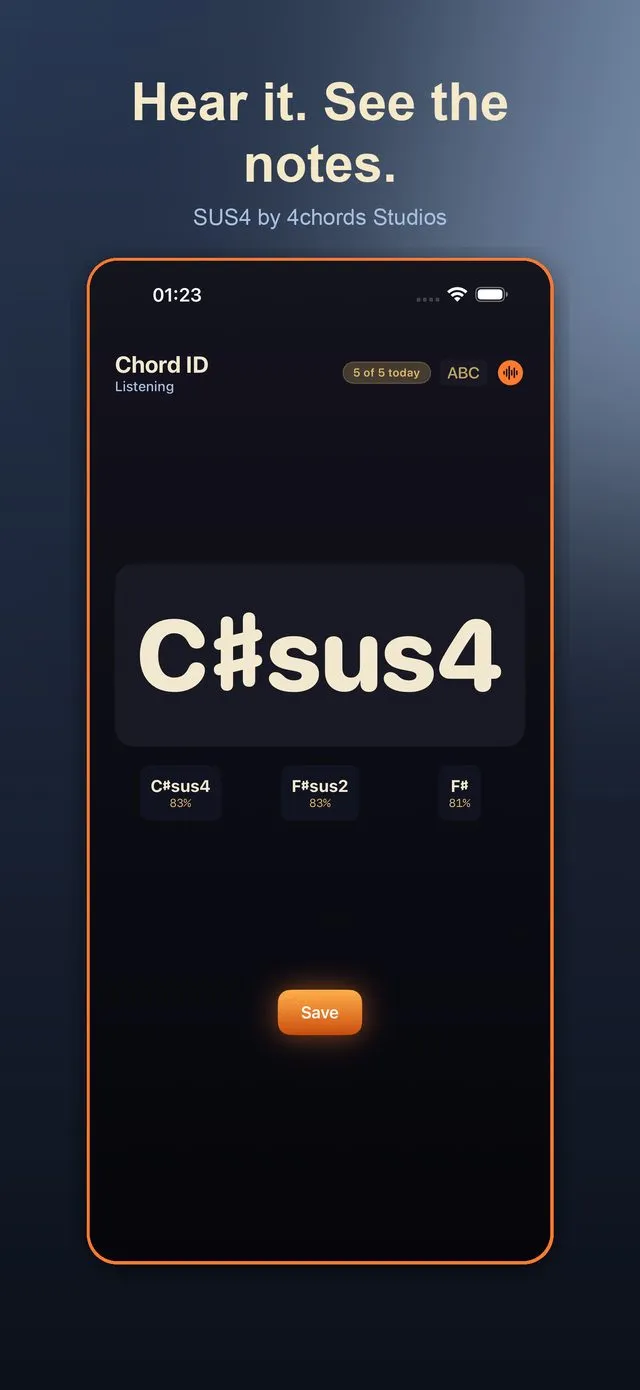
On the Detect tab, Input has two choices, Mic and Keyboard. With Mic selected, tap Tap to start listening (the first time, iOS asks for microphone access). The header changes from Ready to listen to Listening, and the big name appears when the app is confident.
The app listens in short windows several times a second and compares the notes it hears with chord shapes. It knows ten chord types: major, minor, dominant 7th, major 7th, minor 7th, diminished, augmented, sus2, sus4 and power chords. The best match shows large only when its score is above 60%. The three candidates underneath show the next best matches with their scores, so a result like C#sus4 at 83% with F#sus2 at 83% tells you the notes fit both, and that you need to decide with your ear.
Play one chord at a time and let it ring, closer to the microphone than you would sit for a normal recording. Strumming slowly helps, because a very busy strum or a chord played with the drums behind it is harder to read. Because it only knows ten types, a chord with extensions, such as a 9th or a 13th, will be named as the nearest of the ten.
Keyboard: tap the notes you hear
If you work out parts at a piano, or you can pick out the notes of the chord from the record but have nothing to play them on, switch Input to Keyboard. The screen says "Tap keys to build a chord" and "Select notes on the keyboard below". Tap the notes and the chosen notes appear as small tags above the keys.
Add notes until a name appears: the screen says "Need 2 to 3 matching notes for a confident match". The same candidates row appears with the percentages. Tap Clear to start the next chord.
Keep the chords: Save, History and notes
Tap Save under a result to add it to the list on the Detect tab. Your saved chords also appear in the History view, inside the Voicings tab: tap the pencil on a chord to Add a note, such as "verse, bar 3", and the tick to keep it.
After a Mic session the app can also make a share card, Share chord chart, of the chords it identified in the order it identified them. It is a quick way to send the progression to the rest of the band.
Check your answer by ear
Open the Voicings tab and choose Reverse. Under Hear a Chord, type a chord name such as Dm or G7sus4 and tap Play Chord to hear it played. Play it next to the record: if it is not the same, the name is wrong or the voicing is different, and you try the next candidate.
The Voicings view under the same tab shows guitar voicings for a chord, so once you have the name you can find a shape to play it with. For the key of the song, Capo Calc takes a typed progression and suggests the key.
If the name looks wrong
Two similar candidates: that is normal, because a chord with a missing note can fit several names. Add the missing note, or listen for the bass note.
Nothing appears: play louder or closer, in a quiet room, and let the chord ring for a second or two. A chord is only shown above 60%.
It keeps changing: that is the chord changing, or a note dying away. Take the name when it settles, and play the chord again to confirm it.